
第 4 章 - 自定义,第二部分
创建自定义背景形状
形状是可以应用于背景或图像的装饰元素。它们是 SVG 文件,可以进行动画处理并使用不同的颜色进行自定义。
为了更好地与网站期望的氛围保持一致,创建一个客户可以在不同块上重复使用的自定义背景形状。
使用以下设置创建您的自定义形状:
声明您的形状。您可以在此处找到原始的 SVG 形状 。
将形状的基础颜色设置为主题的绿色,并将其添加到可用形状列表中。

参见
请参阅关于如何添加 自定义背景形状 的参考文档。

小技巧
#CEF8A1) 匹配。因此,在 SVG 文件中,您必须使用 Odoo 默认调色板中的颜色 3 (#3AADAA)。在我们的 Airproof 示例中找到以下内容的解决方案:
在 shapes.xml 上的形状声明。
通过 primary_variable.scss 和 option.xml 将形状添加到列表中。
基于 Airproof 设计,将您刚添加的形状应用到主页上的
文本-图像构建块:确保形状位于正确的位置。
将其颜色设置为主题的浅蓝色。
参见
请参阅关于如何使用 背景形状 的参考文档。

小技巧
与标准的 Odoo 形状不同,将自定义形状应用到部分时,在形状类中将 web_editor 替换为 illustration 。
/website_airproof/data/pages/home.xml¶<!-- Text-image block & Background shape -->
<section class="s_text_image o_cc o_cc3 o_colored_level pt120 pb96"
data-snippet="s_image_text" data-name="Image - Text" style="background-color: rgb(41, 128, 187);"
data-oe-shape-data="{'shape': 'illustration/airproof/waves', 'colors': {'c1': '#BBE1FA'}, 'flip': ['x']}">
<div class="o_we_shape o_illustration_airproof_waves o_we_flip_x" style="background-image:
url('/web_editor/shape/illustration%2Fairproof%2Fwaves.svg?c2=%23BBE1FA');
background-position: 100% 100%;"/>
[...]
</section>
创建自定义渐变
接下来,让我们向背景添加渐变。为了增强页面的动态感,将蓝色 rgb(11, 142, 230) 到深蓝色 rgb(41, 128, 187) 的渐变应用到您的“最新产品”块。但在此之前,将渐变添加到网站构建器中,以便客户可以轻松重复使用它。
创建并声明一个
gradients.xml文件并添加自定义渐变。/website_airproof/__manifest__.py¶'data': [ # Gradients 'data/gradients.xml', ]
/website_airproof/data/gradients.xml¶<record id="colorpicker" model="ir.ui.view"> <field name="key">website_airproof.colorpicker</field> <field name="name">Custom Gradients</field> <field name="type">qweb</field> <field name="inherit_id" ref="web_editor.colorpicker"/> <field name="arch" type="xml"> <xpath expr="//div[@data-name='predefined_gradients']/t[@t-set='gradients']" position="after"> <t t-set="gradients" t-value="gradients + ['linear-gradient(0deg, rgb(41, 128, 187) 0%, rgb(11, 142, 230) 100%)']"/> </xpath> </field> </record>
将其应用到“最新产品”部分。
/website_airproof/data/pages/home.xml¶<!-- Latest products section --> <section data-snippet="s_dynamic_snippet_products" class="s_dynamic_snippet_products s_dynamic s_dynamic_empty pt32 pb32 o_colored_level s_product_product_airproof o_dynamic_snippet_empty o_cc o_cc5" data-custom-template-data="{}" data-name="Produits" data-product-category-id="all" data-show-variants="" data-number-of-records="16" data-filter-id="3" data-carousel-interval="5000" data-template-key="website_airproof.dynamic_filter_template_product_product_airproof" style="background-image: linear-gradient(0deg, rgb(41, 128, 187) 0%, rgb(11, 142, 230) 100%) !important;"> [...] </section>
动画
客户喜欢整体设计,但觉得页面有点静态。通过动画(如 淡入 、 旋转 、 弹跳 等)增强页面的交互性。这些可以应用于列、图像、文本、按钮……
基于 airproof 设计,为以下元素添加动画:
轮播图第一张幻灯片的文本。
第一张幻灯片上的贴纸和无人机照片。
带有图标的 4 个列。
调整动画延迟以实现更平滑的过渡。
参见
请参阅关于如何应用 动画 的参考文档。
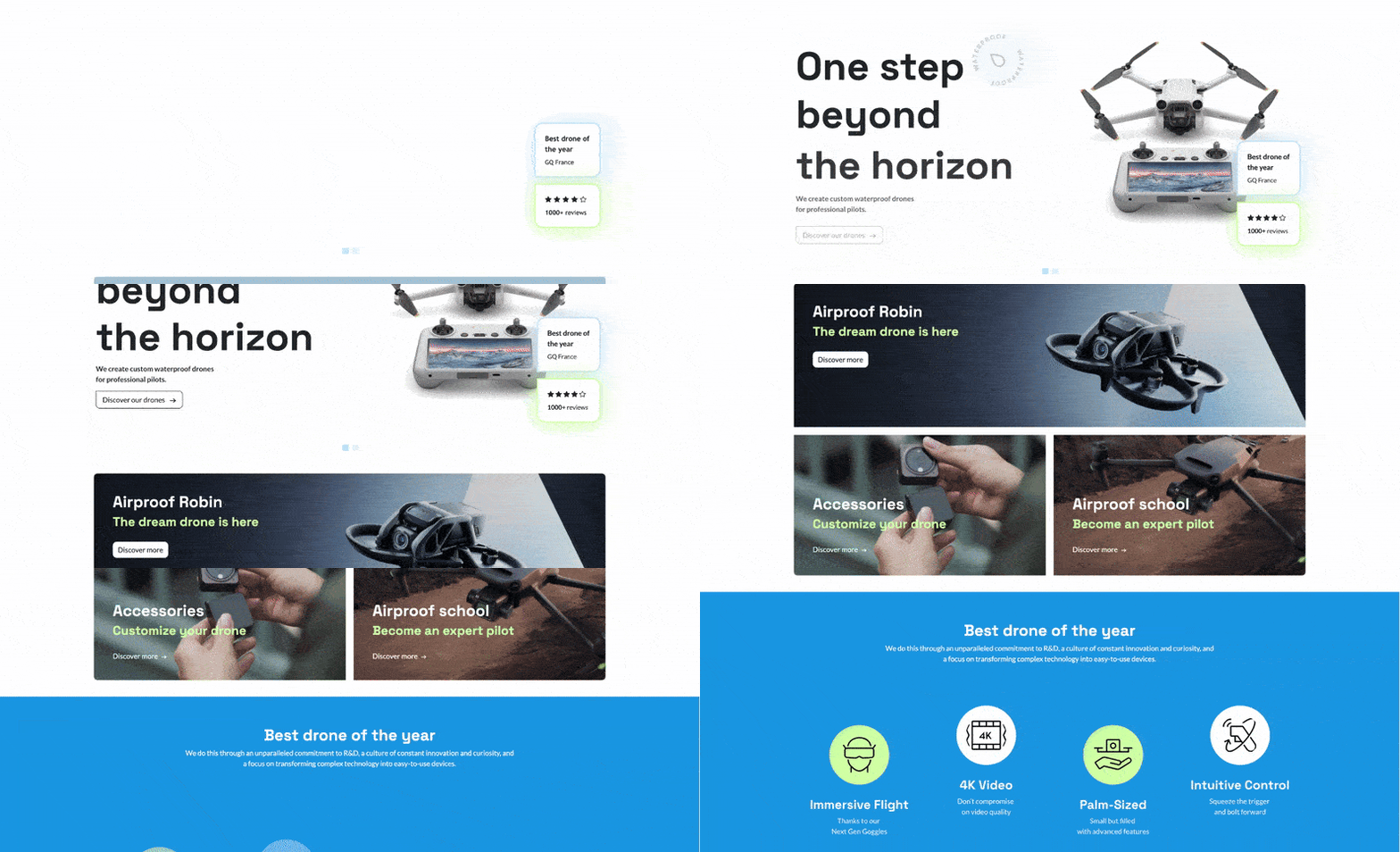
在我们的 Airproof 示例中的 home.xml 上找到解决方案。
<img src="/web/image/website_airproof.img_sticker" class="img img-fluid position-absolute
x_sticker o_animate o_anim_rotate_in o_visible" style="animation-delay: 0.8s;
--wanim-intensity: 30;"/>

<img src="/web/image/website_airproof.img_drone" class="img img-fluid o_animate
o_anim_zoom_out o_visible" alt="Drone"/>
<span class="o_animated_text o_animate o_anim_fade_in o_anim_from_bottom o_visible">One
step</span>
<div class="o_grid_item o_colored_level g-height-7 g-col-lg-3 col-lg-3 text-center
o_anim_fade_in o_animate o_anim_from_bottom o_visible" style="z-index: 2;
grid-area: 6 / 1 / 12 / 4; --wanim-intensity: 15;">
</div>
表单
Odoo 中的表单非常强大。它们可以直接将电子邮件发送到个人收件箱,或直接与其他 Odoo 应用程序集成。这很好,因为您客户的主要优先事项之一是售后服务。因此,联系表单必须正确配置。
基于 airproof 设计,创建一个联系页面。记得禁用默认页面并将新页面链接添加到菜单中。客户对其联系表单有以下要求:
姓名 和 电子邮件地址 字段。
公司名称 字段。
条件性增值税 字段仅在填写 公司名称 时显示。
所有字段都应为必填项,除了 公司名称 。
表单提交必须触发电子邮件。
表单提交后,
感谢消息应保持在联系页面上可见。
小技巧
要确定表单的正确代码:
- 通过网站构建器创建一个测试页面。拖放您感兴趣的构建块并应用正确的设计。使用通过 HTML/SCSS 编辑器 生成的代码。
您也可以在 Odoo 中找到原始的构建块代码:odoo/addons/website/views/snippets/s_website_form.xml 。
在我们的 Airproof 示例中的 contact.xml 上找到解决方案。
创建页面模板
您没有时间为客户创建所有服务页面。别担心!创建一个模板页面,客户可以用它来构建自己的服务页面。
此页面应按以下方式组成:
一个 视差 构建块,
一个 关键优势 构建块,标题替换为 “探索我们的服务” ,
一个 行动号召 构建块,
您的自定义轮播片段。
参见
请参阅关于如何创建 页面模板 的参考文档。
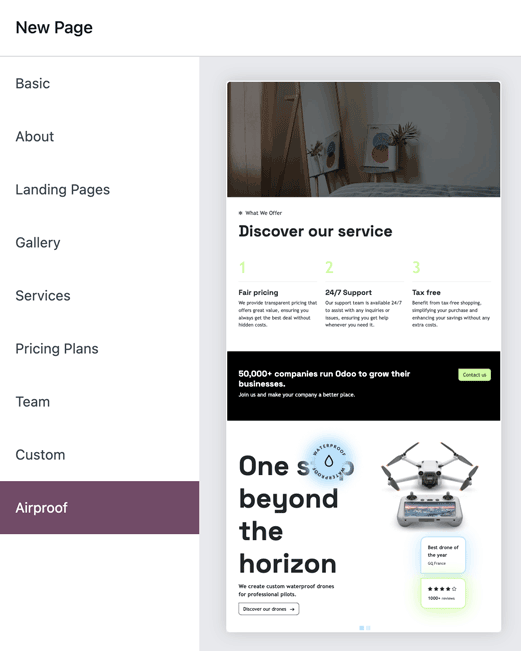
创建您的
new_page_template_templates.xml文件,并在我们的 Airproof 示例 中查看其内容。不要忘记在
__manifest__.py文件中声明您的文件,并定义模板页面包含的内容。/website_airproof/__manifest__.py¶'data': [ # ... 'views/new_page_template_templates.xml', ], 'assets': { # ... }, 'new_page_templates': { 'airproof': { 'services': ['s_parallax', 's_airproof_key_benefits_h2', 's_call_to_action', 's_airproof_carousel'] } },