
Fiscal positions (tax and account mapping)
Default taxes and accounts are set on products and customers to create new transactions on the fly. However, depending on the customers’ and vendors’ location and business type, using different taxes and accounts for a transaction might be necessary.
Fiscal positions allow the creation of rules to adapt the taxes and the income and expense accounts used for a transaction automatically.
They can be applied automatically, manually, or assigned to a partner.
Note
Several default fiscal positions are available as part of your fiscal localization package.
Configuration
To edit or create a fiscal position, go to , and open the record to modify or click New.
Tip
If any notes are legally required when using this fiscal position, add them in the Legal Notes… field below the tax mapping section to display them on quotations, sales orders, invoices, and bills.
Tax mapping
Fiscal positions are required to map taxes. Tax mapping is configured on taxes themselves.
Account mapping
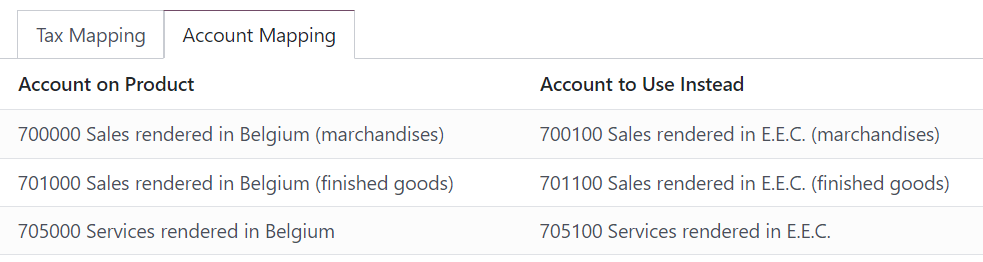
Account mapping is based on the income and expense accounts defined on the product or product category. To map to another account, select the account to be replaced in the left column (Account on Product) and select the account to use instead in the right column (Account to Use Instead).
Application
Automatic application
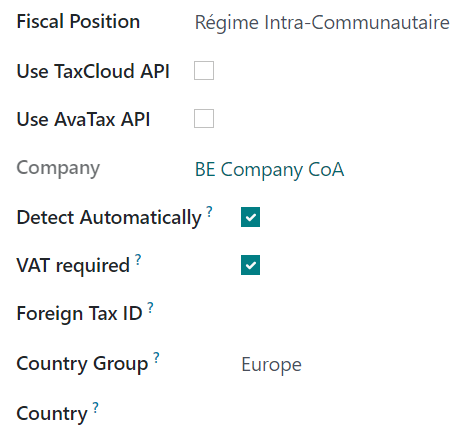
To automatically apply a fiscal position following a set of conditions, go to , open the fiscal position to modify, and tick Detect Automatically.
From there, several conditions can be activated:
VAT Required: the customer’s VAT number must be present on their contact form.
Country Group and Country: the fiscal position is only applied to the selected country or country group.
Note
If the Verify VAT Numbers feature is enabled, any fiscal positions with VAT required enabled will require Intra-Community valid VAT numbers to apply automatically.
Taxes on eCommerce orders are automatically updated once the customer has logged in or filled out their billing details.
Important
The fiscal positions’ sequence defines which fiscal position is applied if all conditions set on multiple fiscal positions are met simultaneously.
For example, suppose the first fiscal position in a sequence targets country A while the second fiscal position targets a country group that comprises country A. In that case, only the first fiscal position will be applied to customers from country A.
Manual application
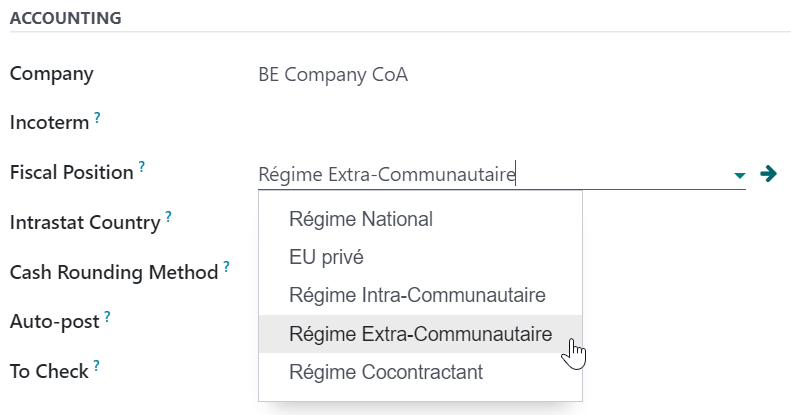
To manually select a fiscal position, open a sales order, purchase order, invoice, or bill, go to the Other Info tab and select the desired Fiscal Position before adding product lines.
Assign to a partner
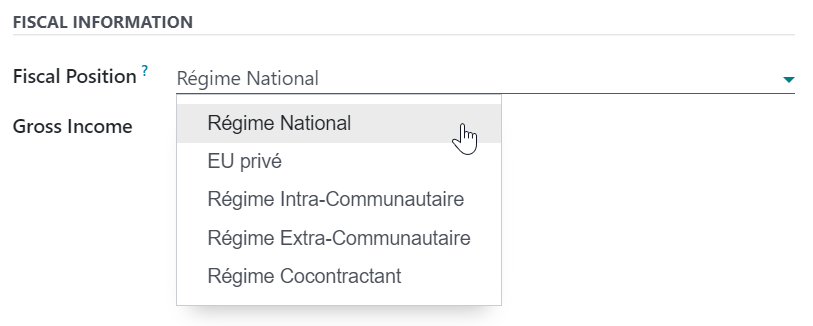
To define which fiscal position must be used by default for a specific partner, go to , select the partner, open the Sales & Purchase tab, and select the Fiscal Position.
Tip
To view all partners at once instead of only customers, remove the Customer Invoices filter or use the Contacts application.